
How to setup IPTV on Kodi
Kodi is an open-source media player which is a free application that functions as a digital media center. This application enables you to play your media, cast it between various devices, from a primary location to other devices. You can use IPTV on Kodi on most of the operating systems such as Android, Microsoft Windows, Linux, iOS, and devices such as Amazon FireTV, Smartphones, Apple TV, Xbox, and PC.

How to Bring IPTV Channels to Kodi
Installing Kodi is astonishingly simple. All you need to do is to download Kodi, double-click on the Kodi image and then perform the setup wizard. It’s that simple! After Kodi is installed, you can download a big variety of add-ons to improve the experience. Here we will show you how to install IPTV on Kodi.
Step-by-Step Guide to Set Up IPTV on Kodi
Step 1: Start by downloading Kodi based on your operating system: https://kodi.tv/download. In this case, we select “Windows“.
*Please note, here we guide how to set up IPTV on Kodi in Windows but the installation process is very similar in all operating systems.
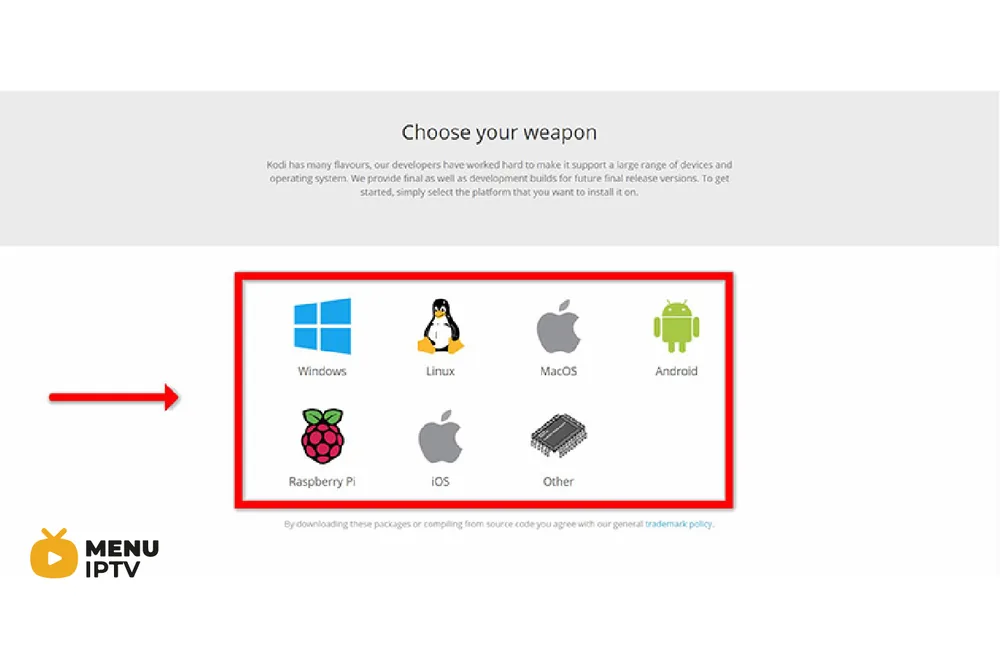
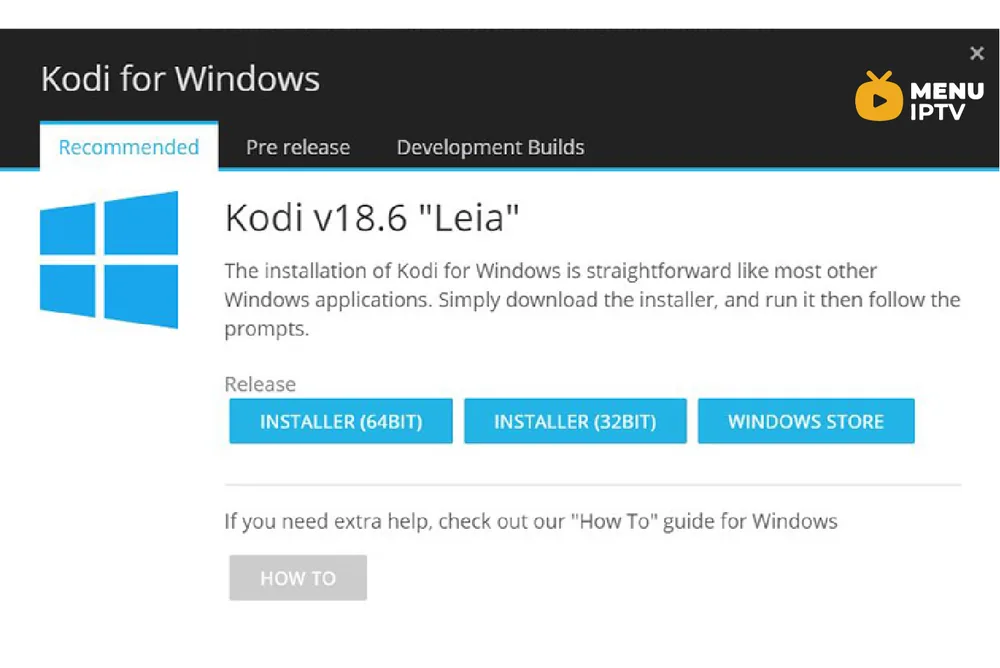
Step 2: Select 64 Bit or 32 Bit based on your operating system.
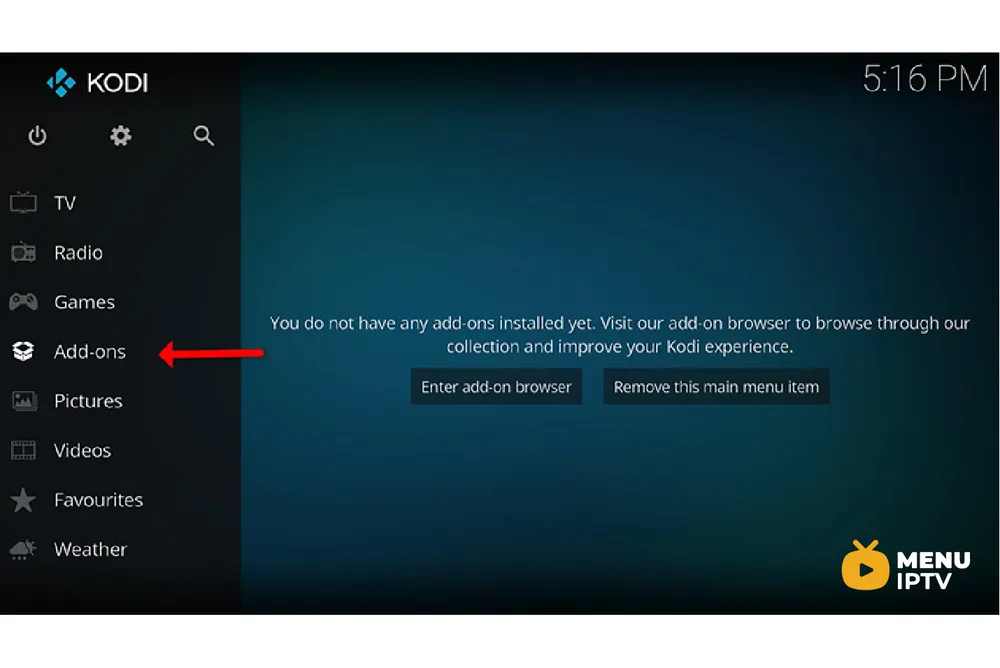
Step 3: After installing and opening it, click on “Add-ons“.
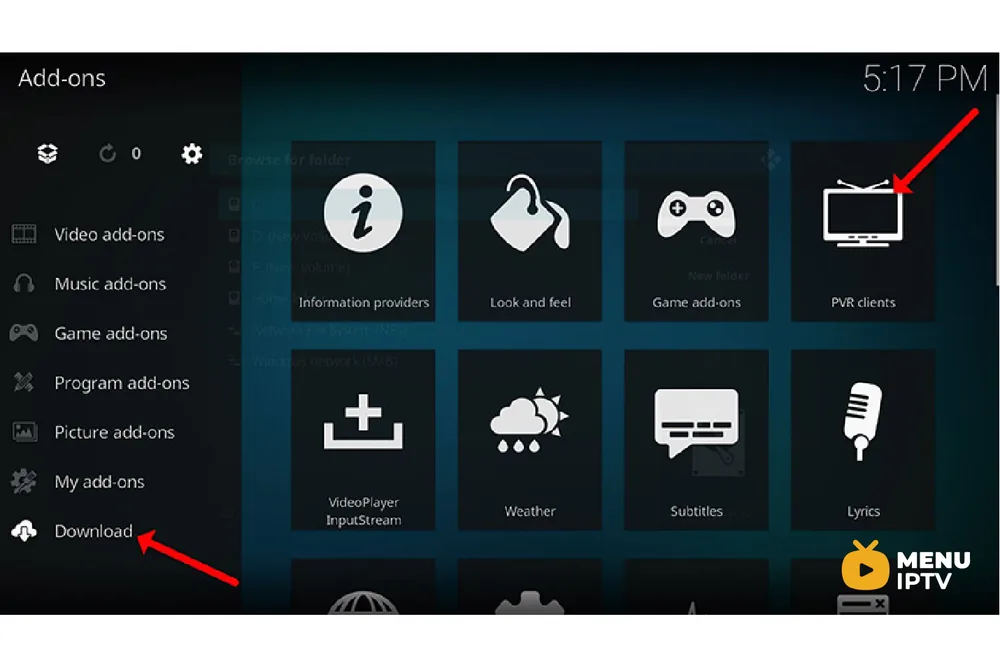
Step 4: Now click on “Download” then select “PVR clients“.
Note: We are going to download and install the PVR add-on here, after installing no need to go to the “Download“. You can find the installed add-ons in “My add-ons“
Step 5: Select “PVR IPTV Simple Client“.
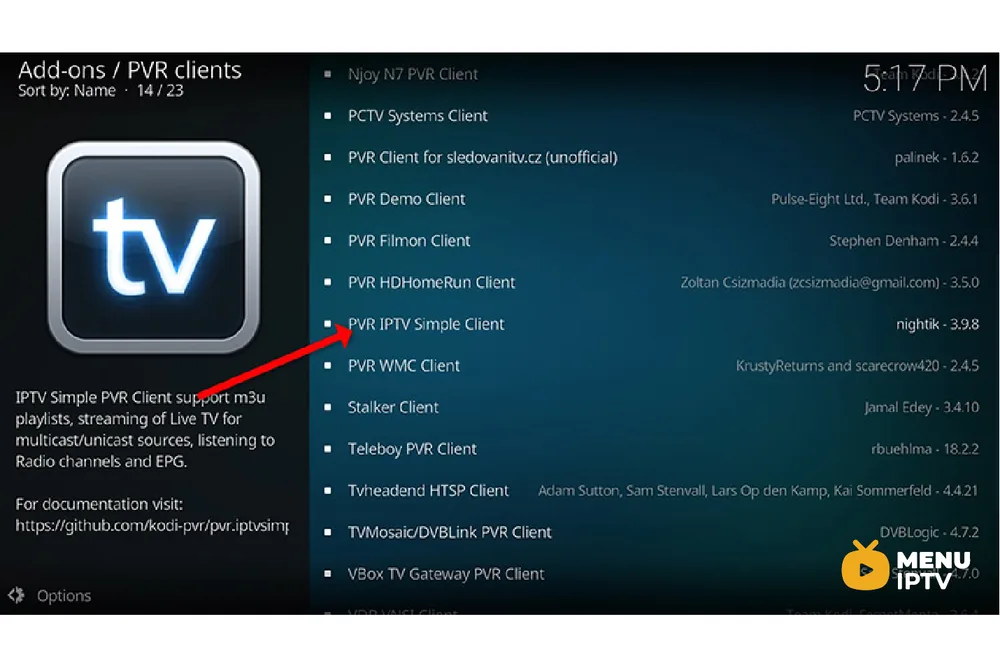
Step 6: Now click on “Install“.
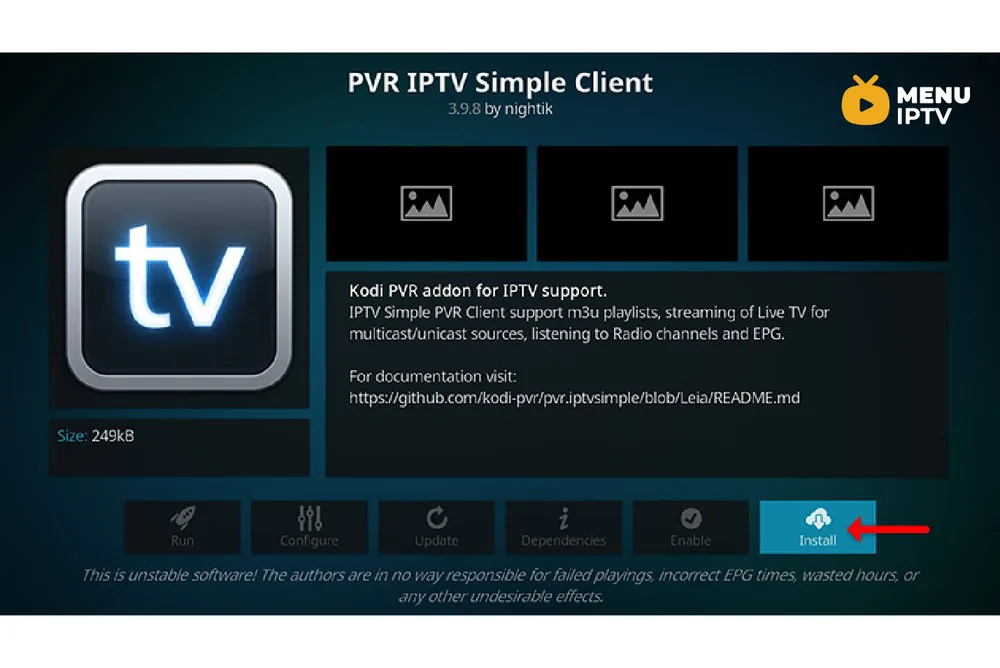
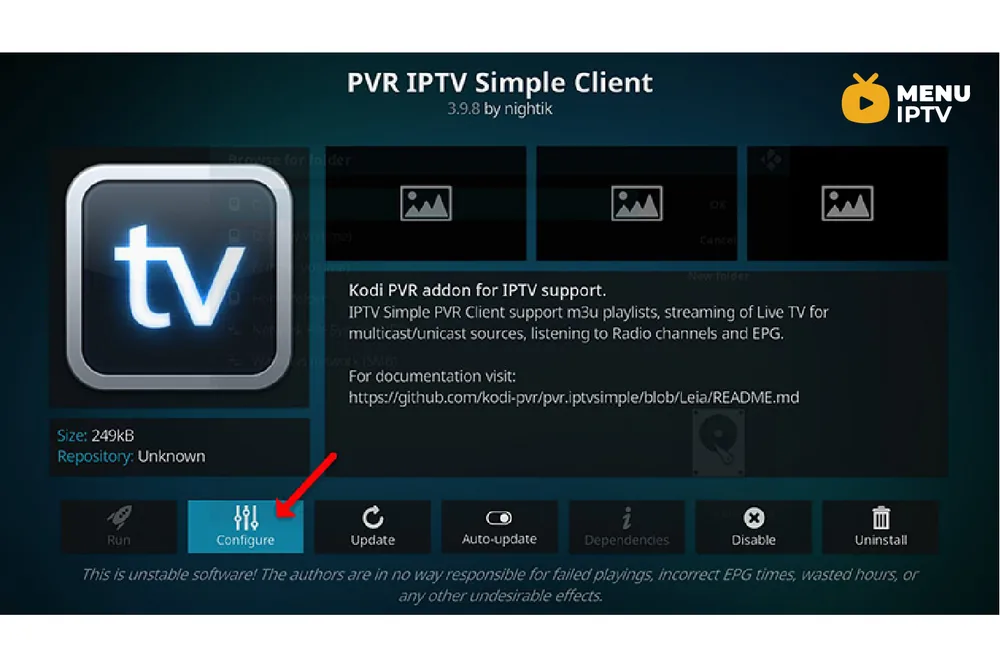
Step 7: After installing “PVR IPTV Simple Client” head back to “My add-ons” then “PVR Clients” and run the add-on. Now click on “Configure“
Step 8: Now select “M3U Play List URL”.
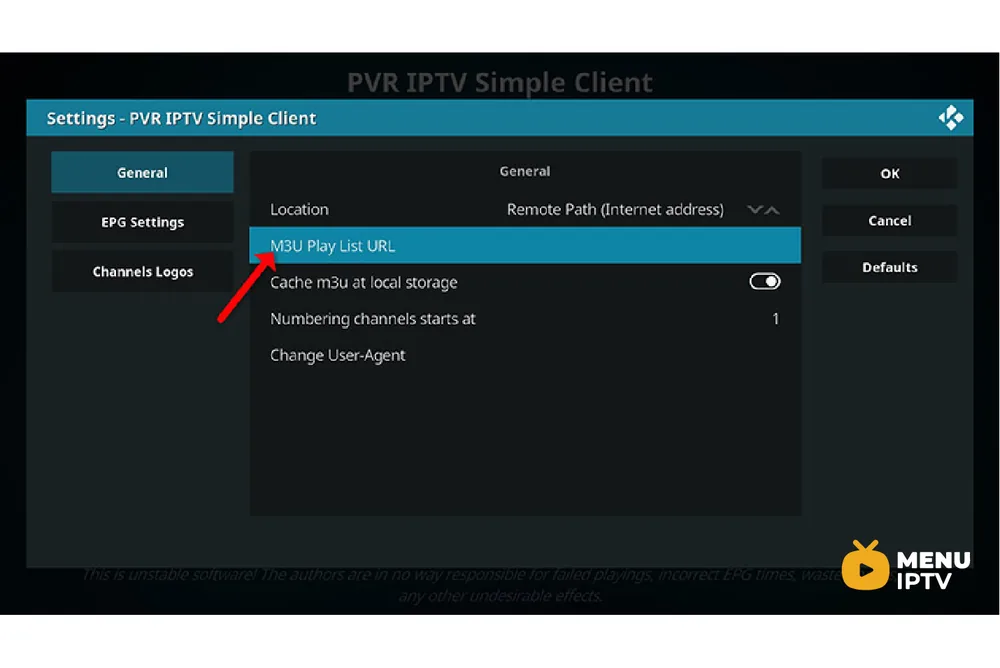
Step 9: Enter the M3U URL provided by your IPTV distributor and click “OK“.
Note: The progressive IPTV providers give you a dashboard where you can generate your M3U URL.
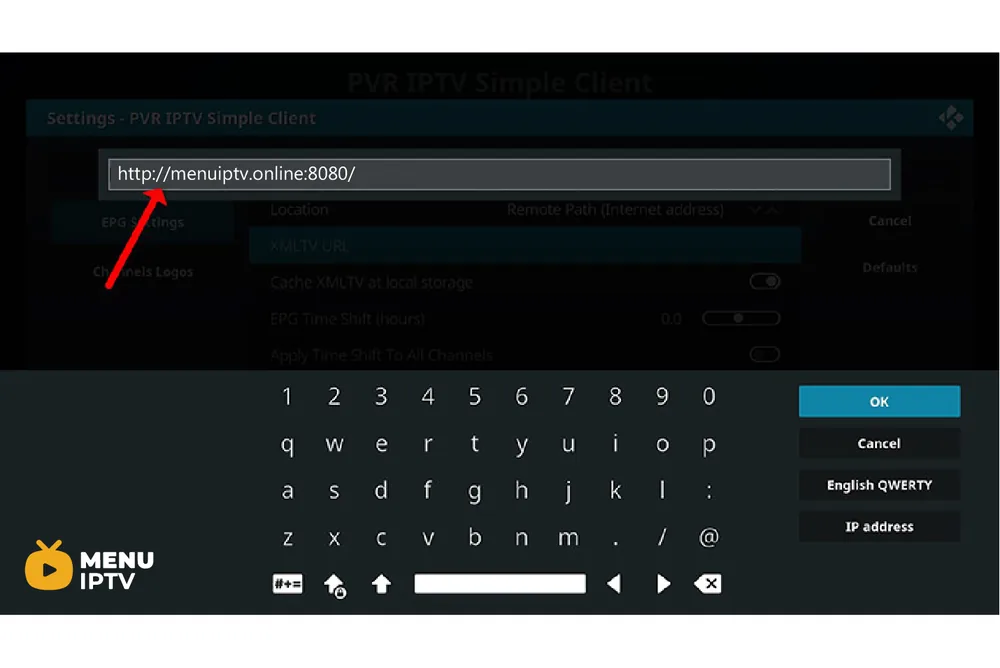
How to Add EPG
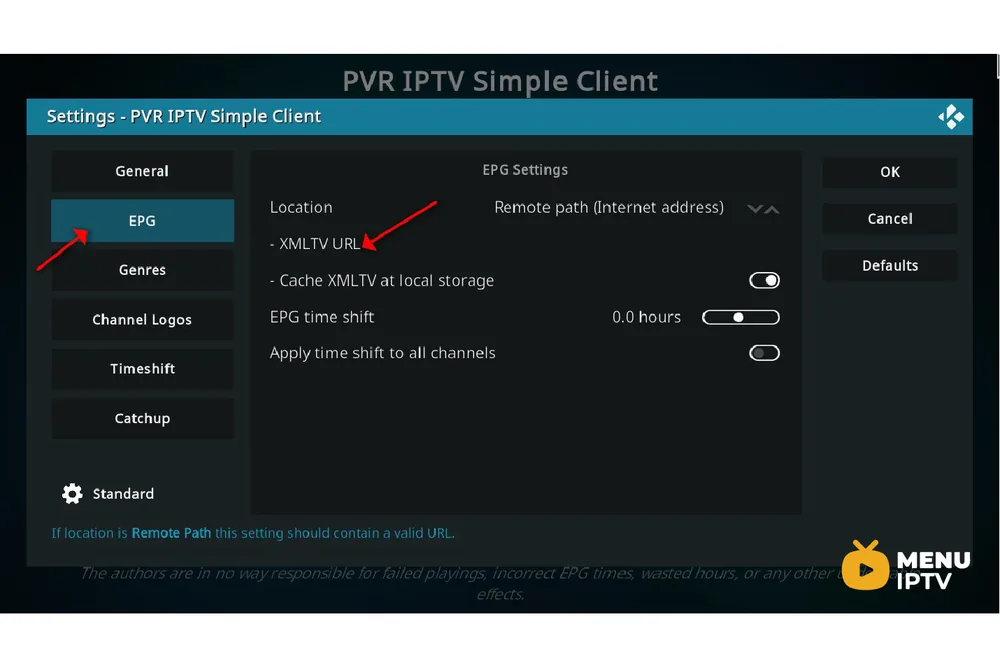
Step 10: Now go to “EPG Settings” and click on “XMLTV URL” for EPG.
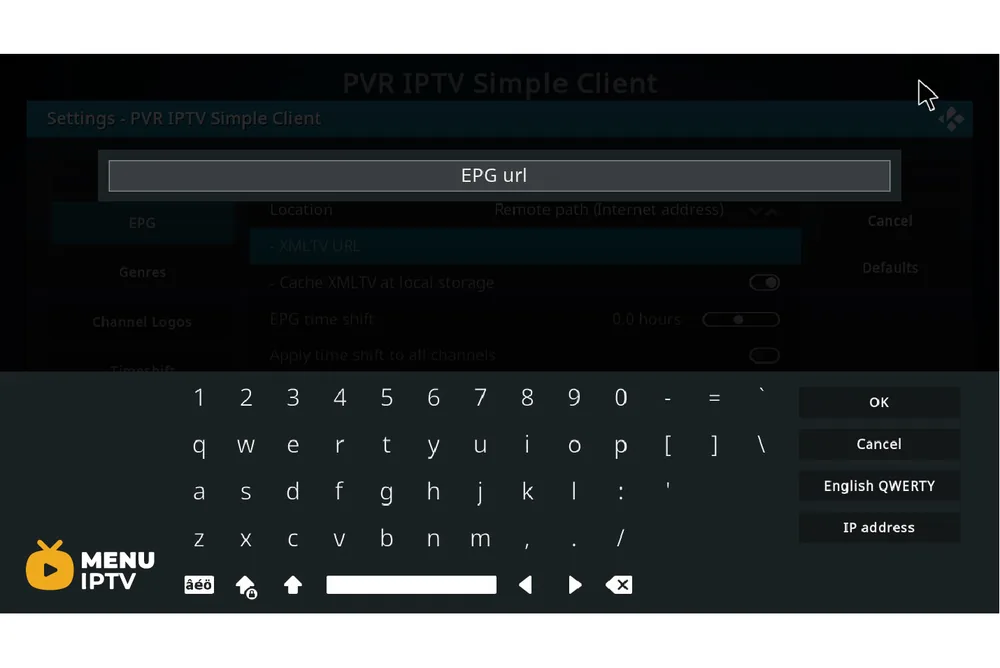
Step 11: Now paste your EPG URL and click “OK“. You can get the EPG URL from your IPTV provider.
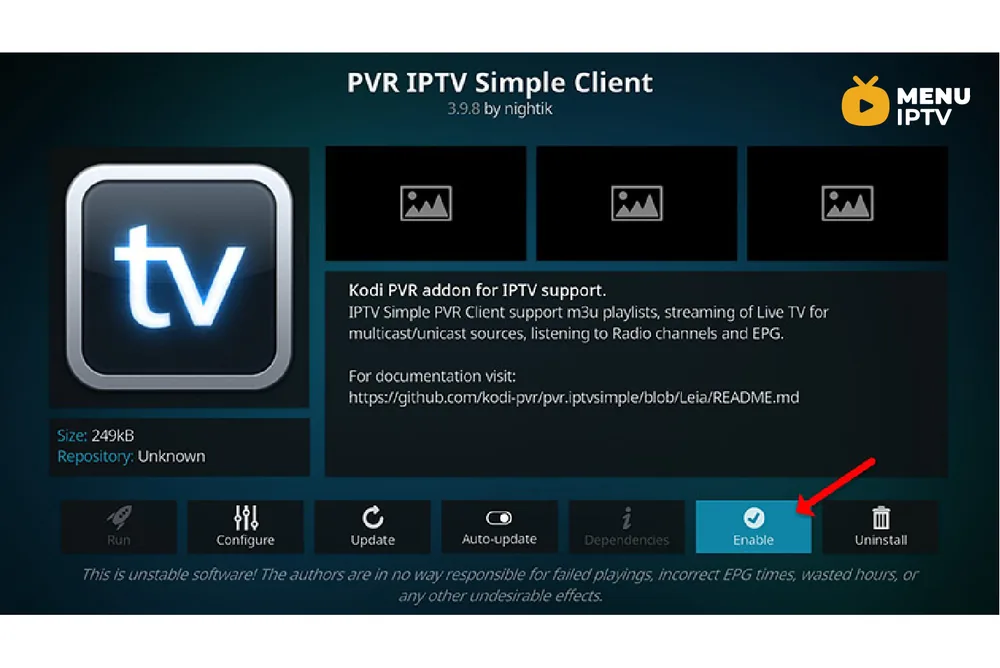
Step 12: Click on “Enable“.
Note: After you enable the add-on you will see “Disable”, this means the add-on is enabled so do NOT click on “Disable” again.
Step 13: Head back to “TV” and click on “Channels“.
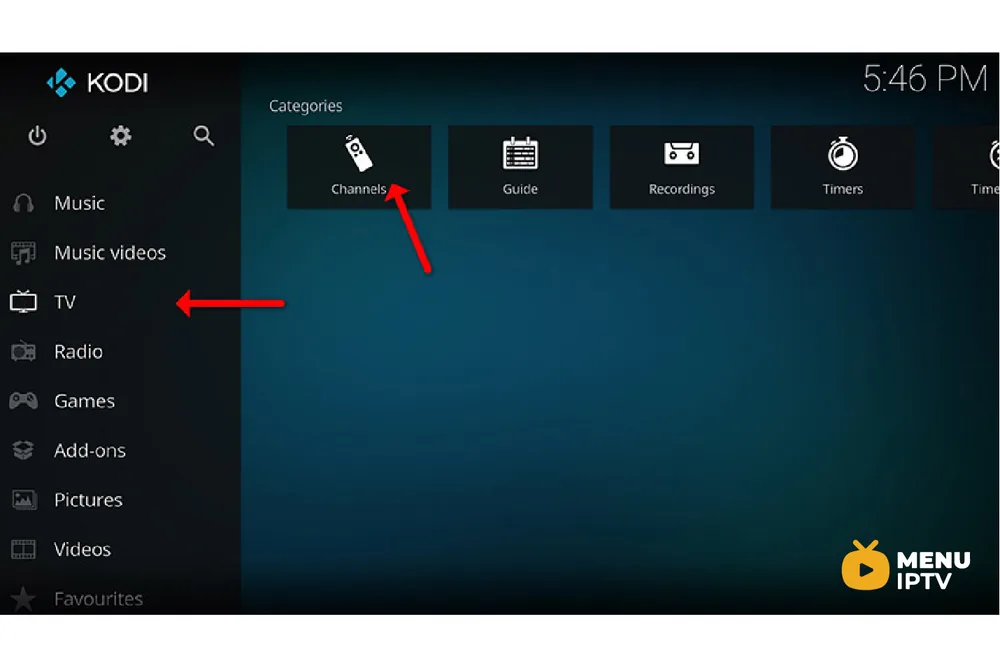
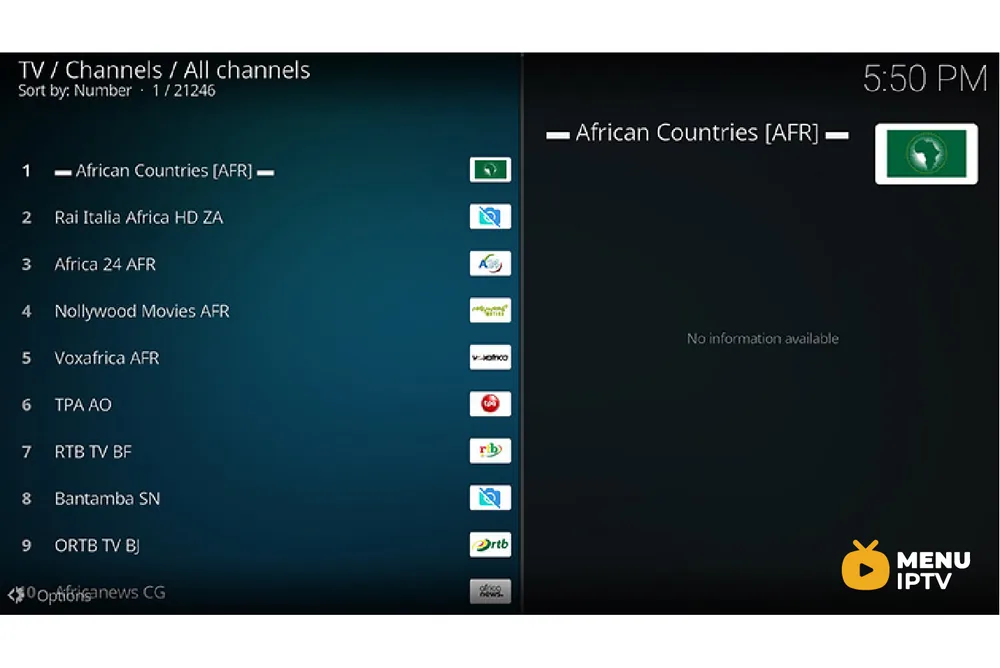
Step 14: Wait until you see the notification about updating channels and the installation process is over.
Well done, you have IPTV channels now.
Conclusion
Kodi is able to play virtually every media content that you can imagine and is very customizable. Kodi allows you to change the color, and skin of the user interface based on your tasteful preferences. You can also download tons of various add-ons to make your entertainment world even more remarkable.Please do not hesitate to ask your question in the comments if you need any further help.
-------------------------------------
/2024/05/30/how-to-setup-iptv-on-ibravebox-f10s
/2024/05/30/8-how-to-setup-iptv-on-iptv-smarters-pro
Need an IPTV subscription for this device? Get the free 24h IPTV test from Menuiptv, then pick a plan from 38 € for 6 months.